Connect to your candidate portal on atlas.workland.com.1-My documents:
In this section, you can upload and store documents for future job applications. Please note that these documents are not automatically sent; they are saved for your use when you apply.
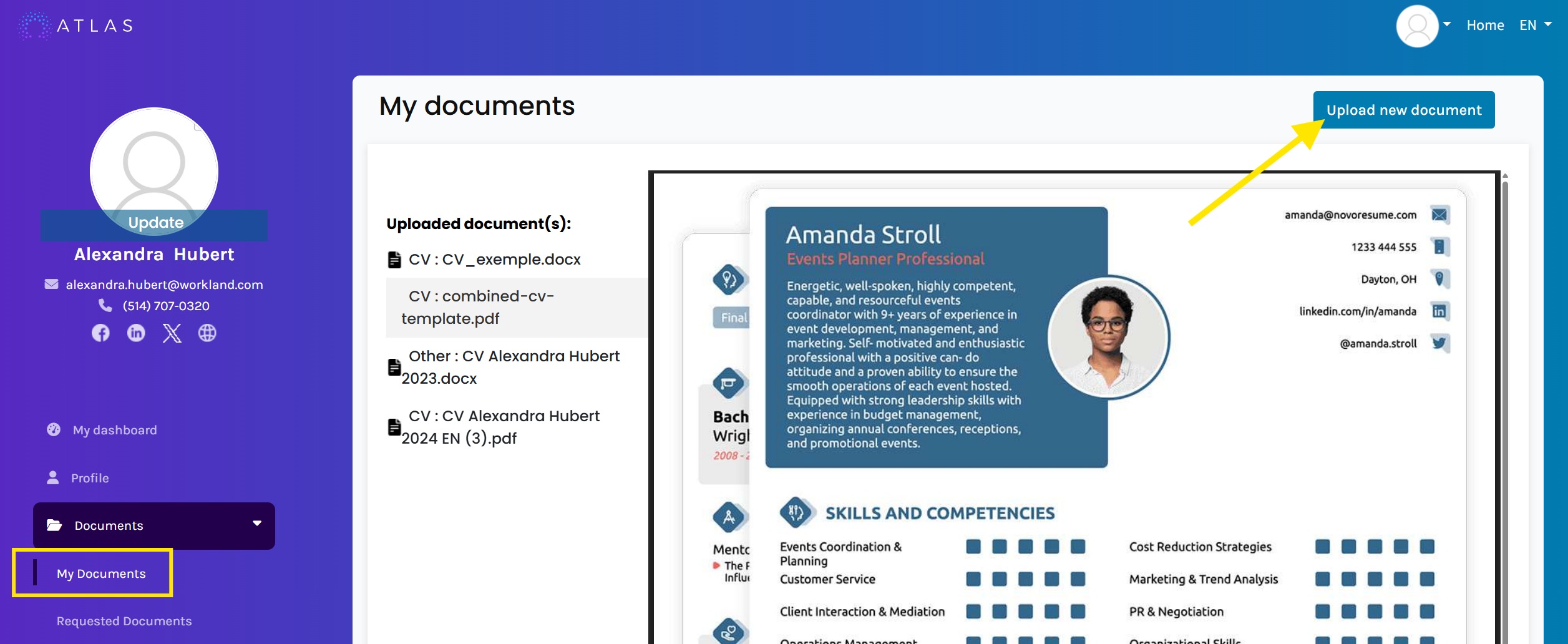
If you are logged into your ATLAS account and searching for jobs on atlas.workland.com/jobs, when you reach the “Upload Resume” step, you can select a resume directly from your ATLAS library instead of uploading it from your computer.
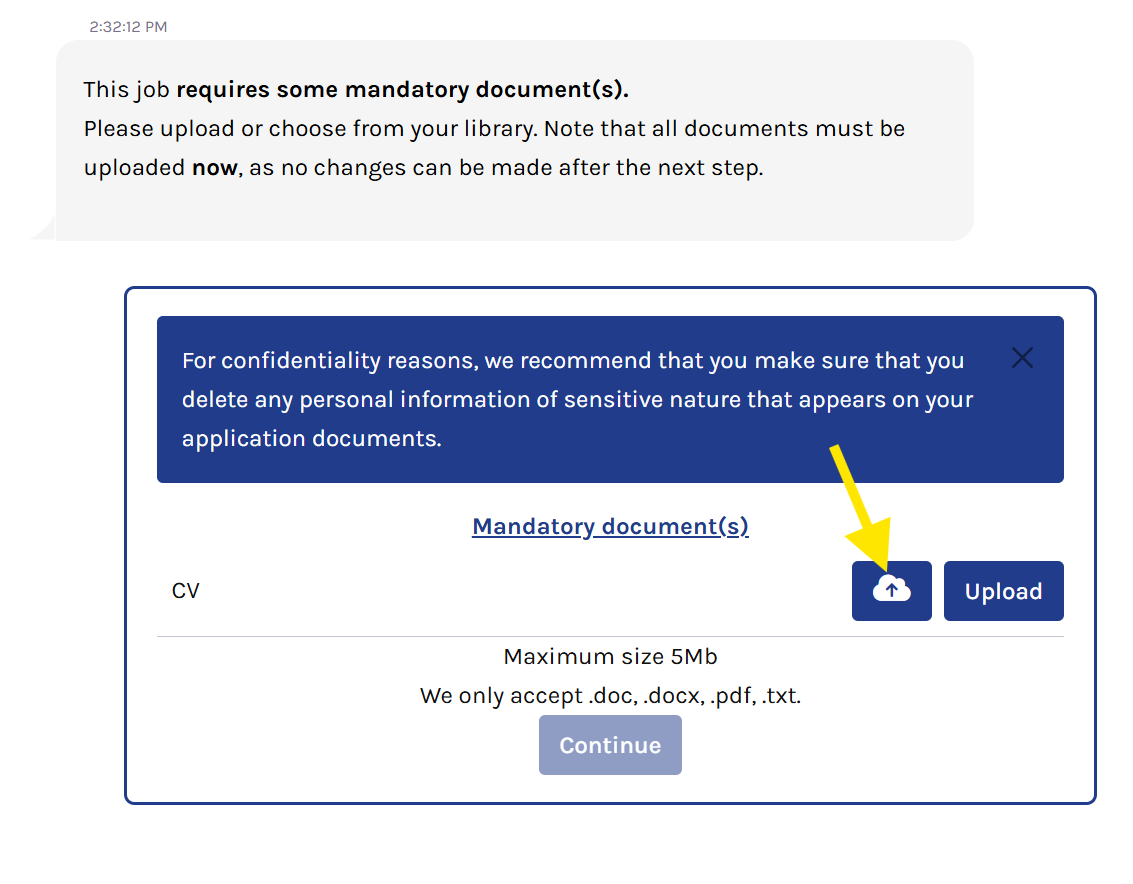
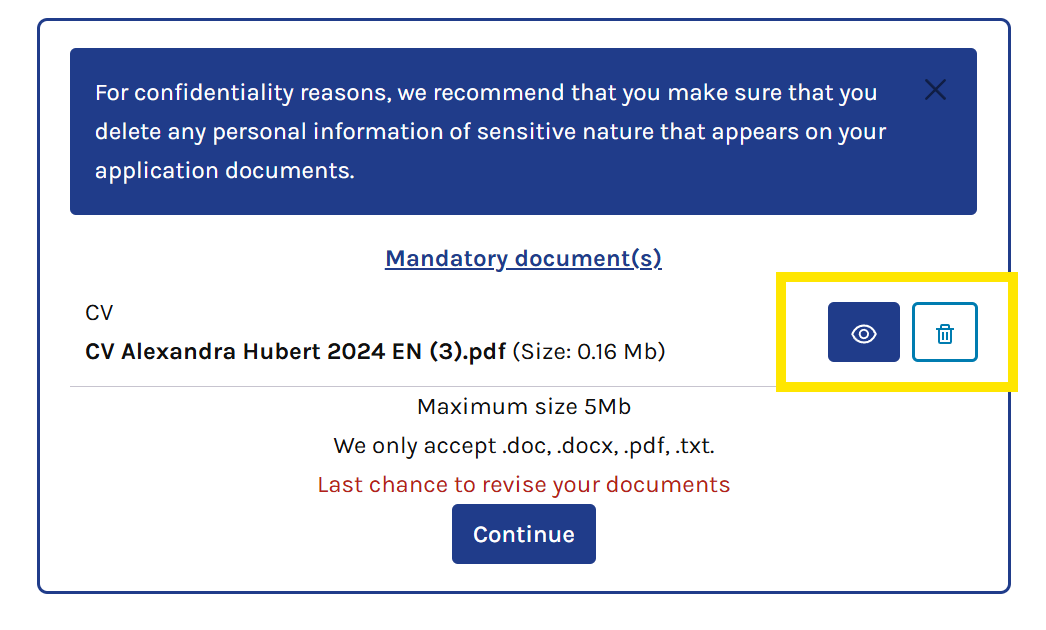
Once the document is uploaded, you can view it and delete it to upload a new one. The “Upload” button allows you to select a document from your computer.
2-Requested documents:
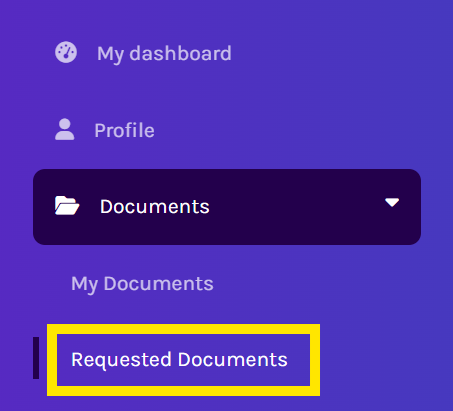
If you have received an email from the employer asking you to view, sign, or upload documents in your ATLAS profile, you will find them under the “Documents” and “Requested Documents” sections.
If you log into your ATLAS portal and it appears to be empty, please make sure you are using the same email address that you received the request from the employer.
Using your phone?
Please select the main menu to open more options.
Then select the "Requested Documents" option. Remember to close the menu in order to see the information.
For documents that only need to be viewed, you can download them or click the preview icon to view them. To notify the employer that you have viewed the document, click the confirmation icon. to preview.

To let the employer know you have viewed the document, select
.

Once a document is uploaded, it will be automatically transferred to your current application.
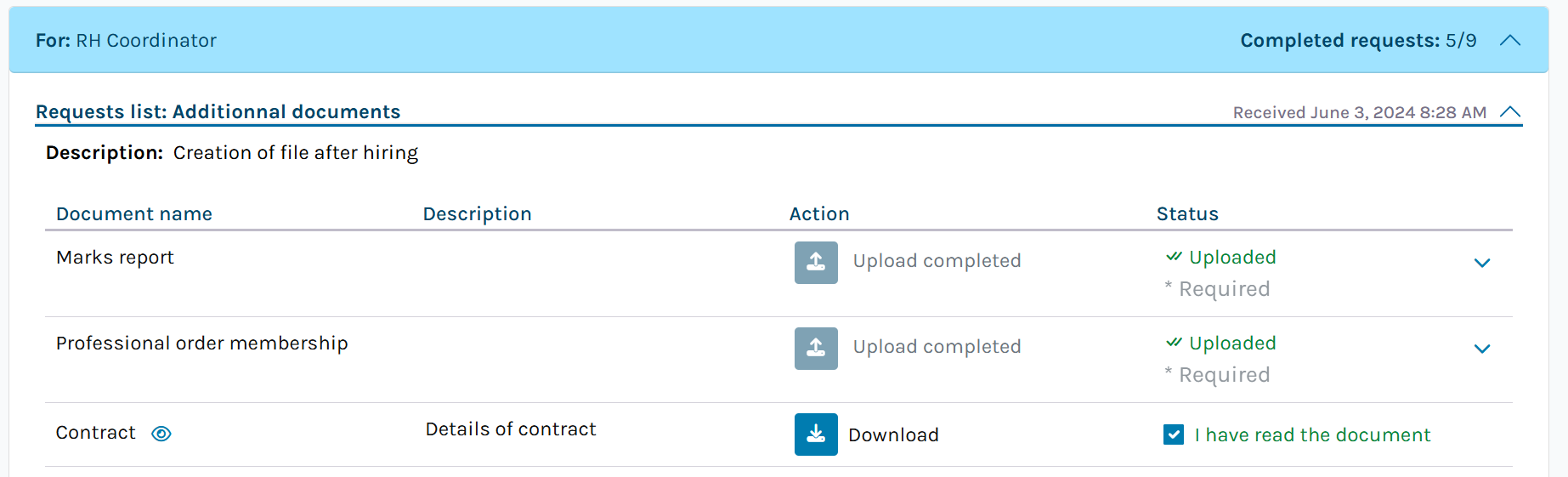
If you believe you have completed all the employer’s requests but the number next to the completed items still appears incomplete (for example, 5/9), the employer may have added additional upload slots in case you have more than one document to provide, such as multiple diplomas. If you are unsure, we recommend contacting the employer directly for confirmation.
The employer refers to the company you are applying to. ATLAS by Workland is the platform used to submit your application, but Workland is not the employer unless you are applying directly to us. Our team is available to support you with any technical issue at support@workland.com.Frequently Asked Questions:
Q: Can you modify a document that has already been uploaded?
A: Yes, you can when you are submitting an application. It is explained above in the "My documents" section.
A: No, if you are uploading as part of a document request. Once a document is uploaded, it is automatically sent to the employer. If needed, you can contact the employer to request a new submission of the document; they can delete it on their side.
Q: Can you send documents to the employer without receiving a document request?
A: No, you must wait to receive a request from the employer first (This can happen only after an application). Uploading a document in the section "My documents" will also not transfer to any employer; you will need to apply first.
Q: Can't see your employer document request?
A: Check that you're logged into the correct account or email. Your Atlas account email must match the one you received the employer's invitation from.
Link to our FAQ page for more articles: support.workland.com
Was this article helpful?
That’s Great!
Thank you for your feedback
Sorry! We couldn't be helpful
Thank you for your feedback
Feedback sent
We appreciate your effort and will try to fix the article